How to add a music visualizer to OBS, three ways
A stream with music looks better when the background moves with it. AVIZ can sit behind your camera and chat in OBS in three ways: as a captured window, as a live Syphon or NDI® source, or as a pre-rendered loop with a transparent background. Which one fits depends on your computer and on how much you want to change live.

Which way to choose
| Window capture | Syphon or NDI® | Transparent WebM | |
|---|---|---|---|
| Runs on | Browser on Mac or Windows | AVIZ for Mac from aviz.studio | Any OBS |
| Reacts live | Yes | Yes | No, it’s a recorded loop |
| Window must stay visible | Yes | No | No |
| Plan | Any, Free included | Any | Free: 720p with watermark; Pro: up to 4K |
Before you start: the sound
AVIZ needs to hear the music to move with it, and OBS needs the same music for your viewers. These are two separate routes. In OBS, keep your usual audio source (desktop audio, the DJ software, an interface). In AVIZ, open Audio input in the player and pick the matching source: a track file, Audio from another tab in Chrome or Edge, a microphone or interface, or system audio in the Mac app. The guide to system audio on a Mac covers every option.
Only stream music you are allowed to play publicly. AVIZ itself never records what it hears.
Way 1: capture the output window
This works in the browser on any plan, with nothing extra to install.
- Open AVIZ in Chrome or Edge, load a scene and give it sound.
- Press Screen / TV in the player and choose Open the output window. A window called AVIZ — output opens with the picture only; the cursor hides over it, and a double-click makes it full screen.
- Resize the window to the size of your canvas, for example 1920×1080, or put it full screen on a second monitor.
- In OBS, add a source: on Windows Window Capture, on macOS macOS Screen Capture with the window method. Choose the AVIZ — output window.
- Put the source at the bottom of the scene, under your camera and alerts.
Keep the output window on screen. If it is minimised or completely covered, the browser may stop drawing it to save power, and OBS gets a frozen frame. A spare monitor, even a small one, solves this. If you only have one screen, use way 2 or way 3.

Way 2: Syphon or NDI® from the Mac app
AVIZ for Mac sends its master output straight into OBS, with no window to capture. It keeps rendering when the window is hidden, so it suits a one-screen setup.
- In the Mac app, press Syphon and NDI in the player and switch on Syphon (for OBS on the same Mac) or NDI (for OBS on another computer).
- Choose the size: 1080p at 60 fps matches most stream canvases.
- In OBS on the same Mac, add a Syphon Client source and pick the AVIZ server. On another computer, install the DistroAV plugin with the NDI runtime, add an NDI Source and pick AVIZ.
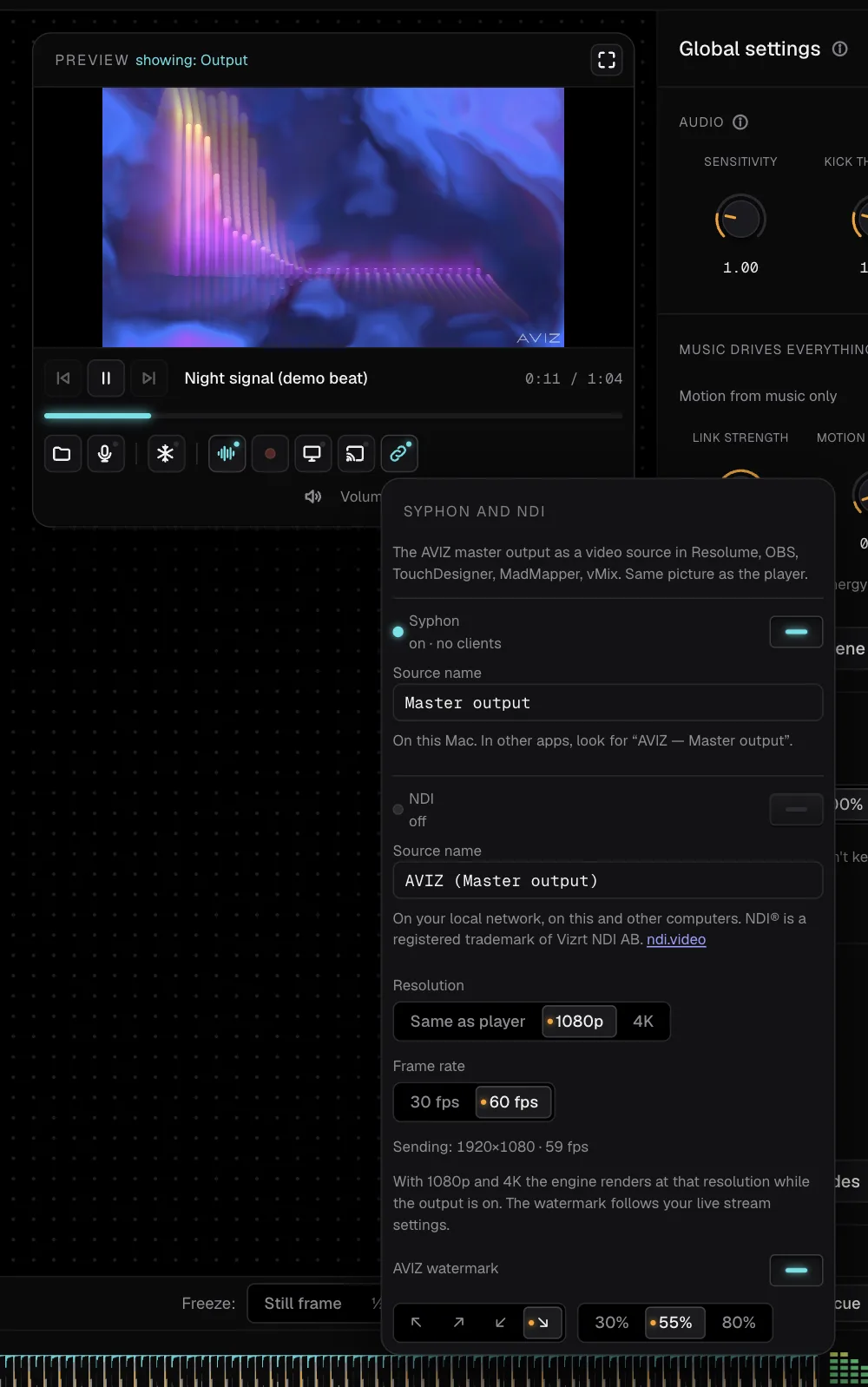
The Mac app can also take its sound from the whole system, so whatever plays into OBS can drive the visuals without extra routing. Details and other receivers are in the Syphon and NDI guide.
Way 3: a transparent loop as a Media Source
For an overlay that doesn’t have to react live, such as a spectrum ring around your camera or a frame for a “starting soon” screen, render it once and let OBS play it on repeat.
- Build the overlay in AVIZ over an empty background and load a track with a similar tempo to your stream music.
- Open File → Export video and frames…, choose Video, turn on Transparent background (this gives VP9 in WebM with an alpha channel), set the size of your canvas and a length of 15–30 seconds.
- In OBS, add a Media Source, choose the WebM file and tick Loop.
The overlay costs OBS almost nothing to play, and it works on any computer, including a streaming PC without a strong graphics card. On Free the export is 720p with a small AVIZ watermark; Pro exports up to 4K without it and allows commercial use, which covers monetised channels.
Tips for a clean stream
- Calm, slow scenes work better behind a face cam than strobing ones. Lower the reaction to the kick, or raise the Kick threshold, if a scene flashes too much.
- Match AVIZ to your canvas: 1080p for a 1080p stream, 30 or 60 fps as in your OBS settings.
- A Show of a few saved scenes, switching every 16 beats or on drops, keeps a long stream from looking the same for hours.
- To put the same visuals on a TV in the room as well, stream them by link on Pro or Studio.