Show live visuals on TVs, phones and tablets, no cables
A bar with four TVs, a stage with a screen at the back of the room, a party where the only display is somebody’s tablet: running HDMI to each one is the hard part. AVIZ can send its picture to them over the internet instead. You open a link on each screen, and they all show what your laptop is rendering, in time with the music.
How it works
Your laptop runs the scene in AVIZ and reacts to the music. When you start a Live stream, AVIZ encodes the picture once and sends it out; every screen that opens the link receives the same video live. The screens only play video, so an old tablet or a TV browser can keep up with a scene that would be too heavy for it to render.
- Any device with a modern web browser works: a phone, a tablet, a smart TV, another laptop.
- Nothing to install and no sign-in on the screens. Nothing can be controlled from them either.
- When a screen is on the same network as the laptop, AVIZ connects them directly and raises the video bitrate.
- Pro streams to 5 devices at once, Studio to 10.
Setting it up
- Open AVIZ on the laptop, sign in with a Pro or Studio plan, and load a track or pick an Audio input.
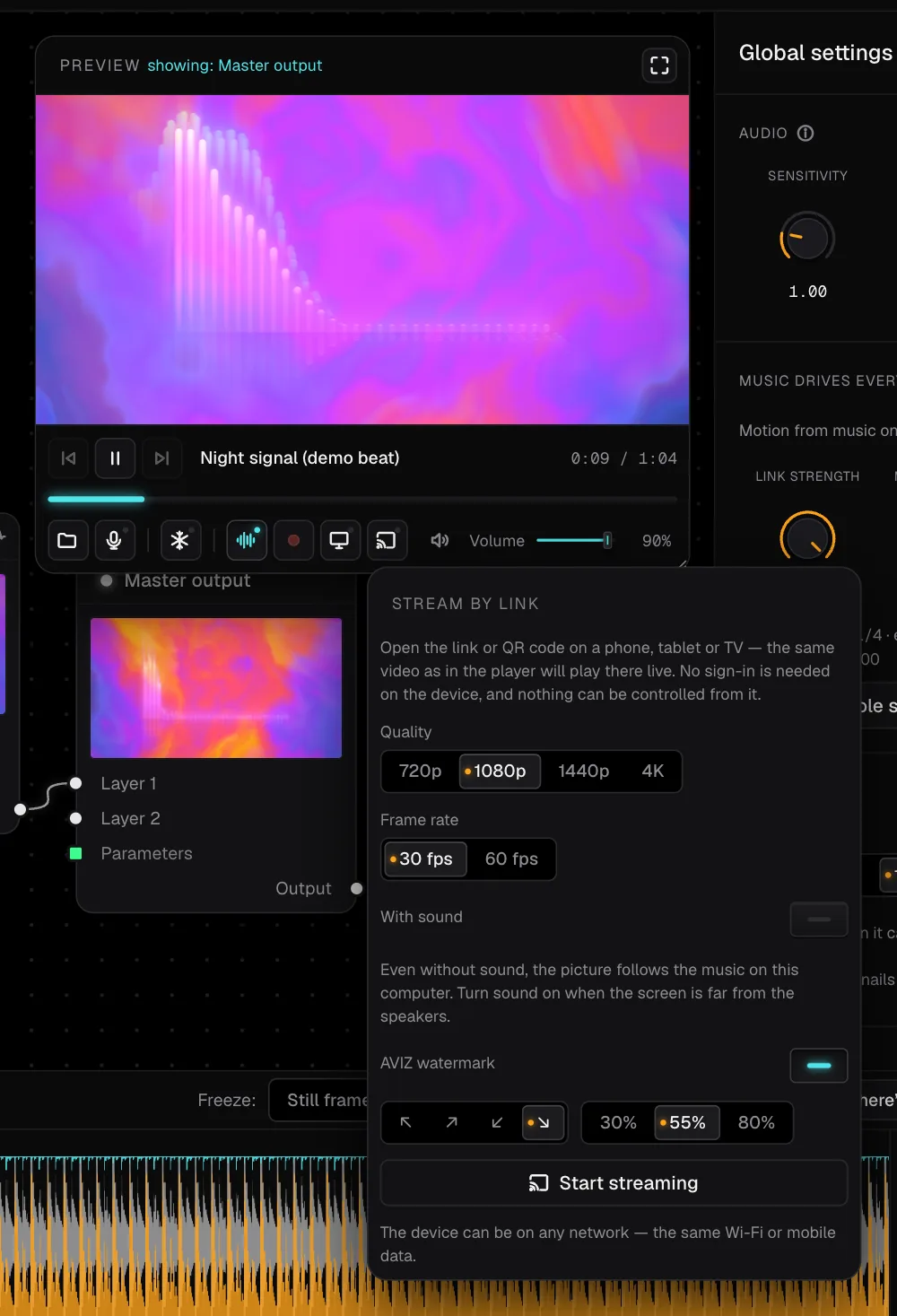
- Press Live stream in the player, choose the quality and press Start streaming.
- Open the link or scan the QR code on each screen. Each one appears in the Devices list as it connects.
- Put the TV browser in full screen. That’s it: the screens follow every change you make on the laptop.
To stop, press Stop streaming. That also revokes the link, so nobody can reconnect to it later.
Settings worth knowing
Quality
Choose 720p, 1080p, 1440p or 4K, at 30 or 60 frames per second. The engine renders at the resolution you pick, so a higher one needs a stronger laptop. For TVs across a room, 1080p at 30 fps is a good start; 4K makes sense for a large display seen up close. Each device also has its own Quality for this device, so a phone can take less than the main TV.
Sound
The picture moves with the music on your laptop whether or not the screens get sound. Turn With sound on when a screen is far from the speakers, for example a TV in another room. Sound and picture travel in one stream and stay in sync. Each device can then mute or unmute itself in Device settings.
Fit, mirror and names
For each device you can choose Fit with bars or Fill and crop, mirror the image for rear projection, and give it a name like “Bar TV left” so you know which is which in the list. A device you don’t want can be removed with Disconnect.
Watermark
An optional AVIZ watermark with a choice of corner and opacity. Leave it off for client events, or on when you want the venue to know where the visuals come from.

When a cable is still better
Streaming goes through the internet unless the devices sit on the same network, so it adds a short delay. For a projector right next to the DJ, the output window over HDMI has none. For Resolume, OBS or TouchDesigner on the same Mac or the local network, Syphon and NDI® are made for that job. The link is for everything else: screens that are far away, scattered around, or not yours to plug into.
What it costs
Live streaming is in Pro ($12 a month or $96 a year, up to 5 devices), in Studio ($29 a month or $240 a year, up to 10 devices) and in the one-time founder licence ($128, Pro for life, first 32 buyers). Free has every effect and the output window, but no streaming by link. Prices are in US dollars, paid in USDC or USDT. Compare the plans.