Visuals for a DJ set on a projector or club screen
Most venues have a projector or an LED wall and nothing to show on it. With a laptop and AVIZ you can put visuals there that hit with the kick and change on the drop, without a VJ in the booth. This is the setup, from the cable to the first track.

What the setup looks like
You need three things: the music reaching AVIZ, AVIZ running on a laptop, and that laptop connected to the screen. There are two common layouts.
- One laptop. The DJ software and AVIZ run on the same machine, and the projector hangs off its HDMI port. Fine for a recent laptop, and the simplest to carry.
- Two laptops. The DJ plays as usual, and a second laptop runs only the visuals, fed by a cable from the mixer. More robust: if the visuals hiccup, the music doesn’t.
AVIZ runs in Chrome or Edge at app.aviz.studio or as the app for Mac (Apple silicon, macOS 13 or later). The effects are drawn by the graphics chip; on a weaker machine AVIZ lowers the resolution itself to keep the picture smooth.
Getting the sound in
This is the part that decides whether the visuals feel tied to the music. Open the Audio input menu in the player and pick the route that matches your setup. The guide to Mac system audio compares all of them in more detail.
DJ software on the same Mac
In the Mac app, choose Listen to system audio. Everything that plays on the Mac reaches AVIZ: rekordbox, Serato, Traktor, djay, Apple Music. It needs macOS 14.2 or later; the first time, macOS asks for permission under Privacy & Security → Screen & System Audio Recording.
In the browser, a page can only hear other browser tabs, so for desktop DJ software use a virtual audio device. On a Mac that is the free BlackHole 2ch:
- Install BlackHole 2ch.
- In Audio MIDI Setup, press + → Create Multi-Output Device and tick your headphones or speakers and BlackHole 2ch.
- In System Settings → Sound → Output, choose that multi-output device, so both you and AVIZ hear the music.
- In AVIZ, pick BlackHole 2ch in the input list and press Listen to this input.
On Windows, the same job is done by the Stereo Mix input or VB-CABLE.
A separate visuals laptop
Run a cable from the mixer’s booth or record output into an audio interface on the visuals laptop, then pick that interface in Audio input and press Listen to this input. A clean line signal gives the steadiest beat detection. In a pinch, the laptop’s built-in microphone also works: it hears the room, so kicks come through, with a little more noise.
Then watch the meters under the node map while a track plays. If AVIZ misses kicks, lower Kick threshold; if it fires on hi-hats, raise it. Drop threshold sets how big a hit has to be to count as a drop, which is what switches scenes.
Putting the picture on the projector
- Connect the projector or screen and set it as an extended display, not a mirror, so the controls stay on your laptop.
- In the browser, press Screen / TV in the player and choose Open the output window. A window opens with the picture only; drag it to the projector and press F for full screen.
- In the Mac app, choose the display in the Output menu: the output opens full screen on it, and the controls stay in the main window.
The output window shows the same frame as the preview, copied straight after each render. The Mac app keeps rendering when its window is hidden, so you can switch to the DJ software without the screen freezing.
Preparing scenes for a whole set
One scene on loop for two hours gets old. Two tools in AVIZ keep the screen moving without you touching it.
Stack holds up to eight effects in one node and switches between them on kicks, drops, a frequency band or rising energy, with a transition each time. Transitions land on the downbeat, so a change never cuts across a bar.
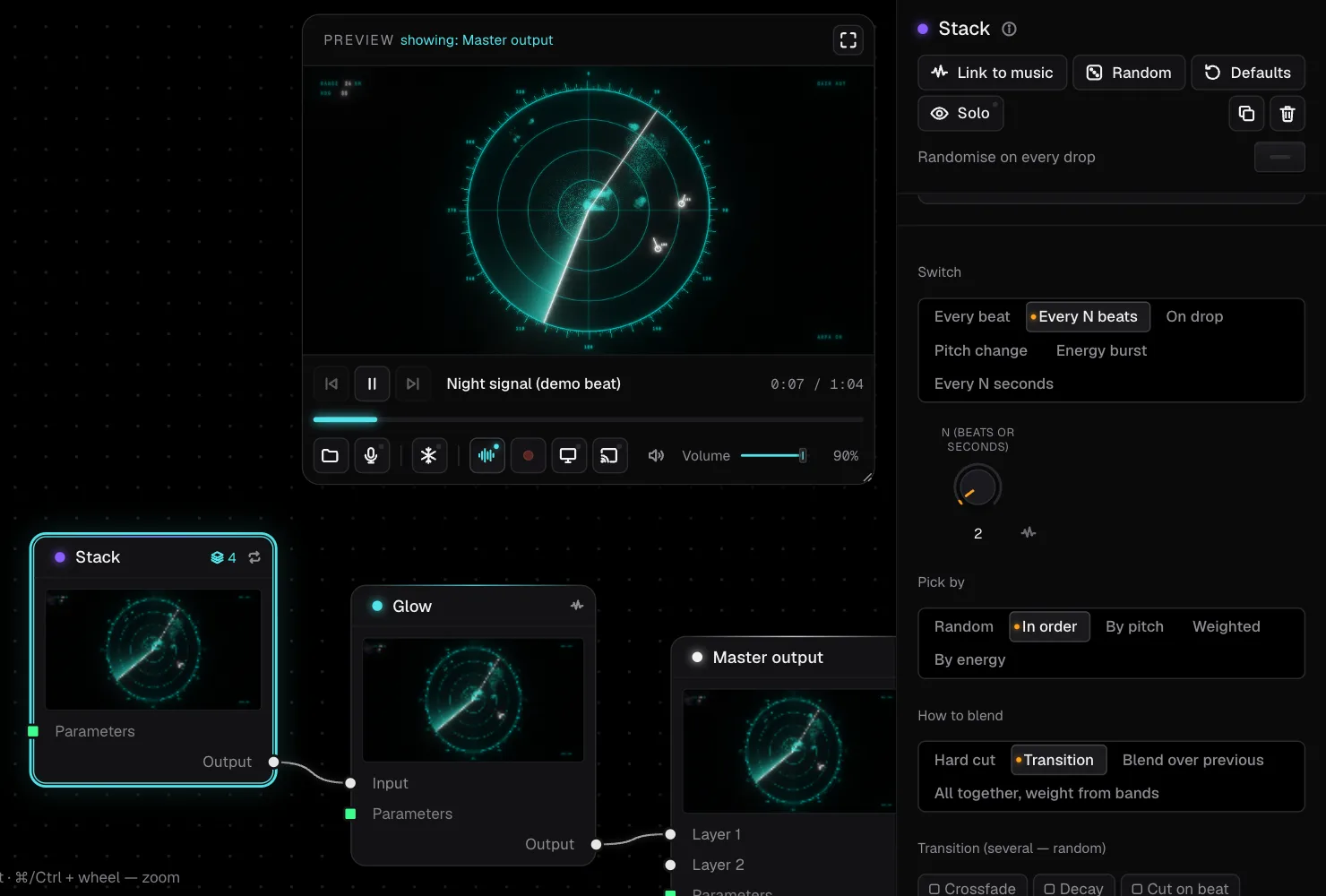
Show strings the saved scenes of a project into one programme. It plays them one after another with transitions, switching every so many seconds, beats or drops, in order or at random, or stacks them together as layers. Build a calm show for the warm-up and a harder one for peak time, and switch between them like you would between crates.
On Pro and Studio the cloud keeps scenes, shows and track cues in sync, so a set prepared at home opens on the laptop at the venue.
Before doors open
- Open AVIZ while you still have internet. Once it’s open, rendering happens on your laptop, and a scene keeps running if the venue Wi-Fi drops.
- Plug the laptop into power and turn off sleep and screen savers.
- Test with the real mixer level: a quiet booth output can make AVIZ miss kicks that it caught at home.
- Check the projector’s native resolution and set the display to match, so the picture isn’t scaled twice.
- Keep one quiet scene ready for announcements and breaks.
Beyond one projector
To put the same picture on TVs around the room, phones or a tablet, stream it by link. If the venue runs Resolume, OBS or TouchDesigner, the Mac app can send its output over Syphon and NDI® and the VJ mixes it like any other source.