MilkDrop in the browser and on Mac, with 246 classic presets
MilkDrop started as a Winamp plugin around 2001, and its presets still look like nothing else: liquid feedback, warping tunnels, colours that melt into each other on every kick. AVIZ runs those presets as one of its effects, in Chrome or Edge on any computer or in the Mac app, so you can watch them to your own music without installing an old media player.

Where MilkDrop lives now
The original plugin needs Winamp on Windows. Two open-source projects keep the presets alive elsewhere: projectM, a native player for desktop systems, and Butterchurn, which renders MilkDrop presets with WebGL in a browser. AVIZ uses Butterchurn under the MIT licence and ships 246 of the classic presets with it.
The difference from a plain MilkDrop player is what sits around it. In AVIZ, MilkDrop is a node on a map: you can put a filter after it, lay it under another effect, put it in a Stack with other scenes, send it to a projector or a TV, or switch presets only on the drop.
Start in a minute
- Open the MilkDrop template in Chrome or Edge.
- Give it sound. Load a track with Tracks, or pick a source under Audio input: a microphone or interface, Audio from another tab for a streaming service in the same browser, or system audio in the Mac app.
- Press Present (or the P key) for full screen.
The first launch loads the preset library, about 1.5 MB, so the picture appears a moment after the music starts.
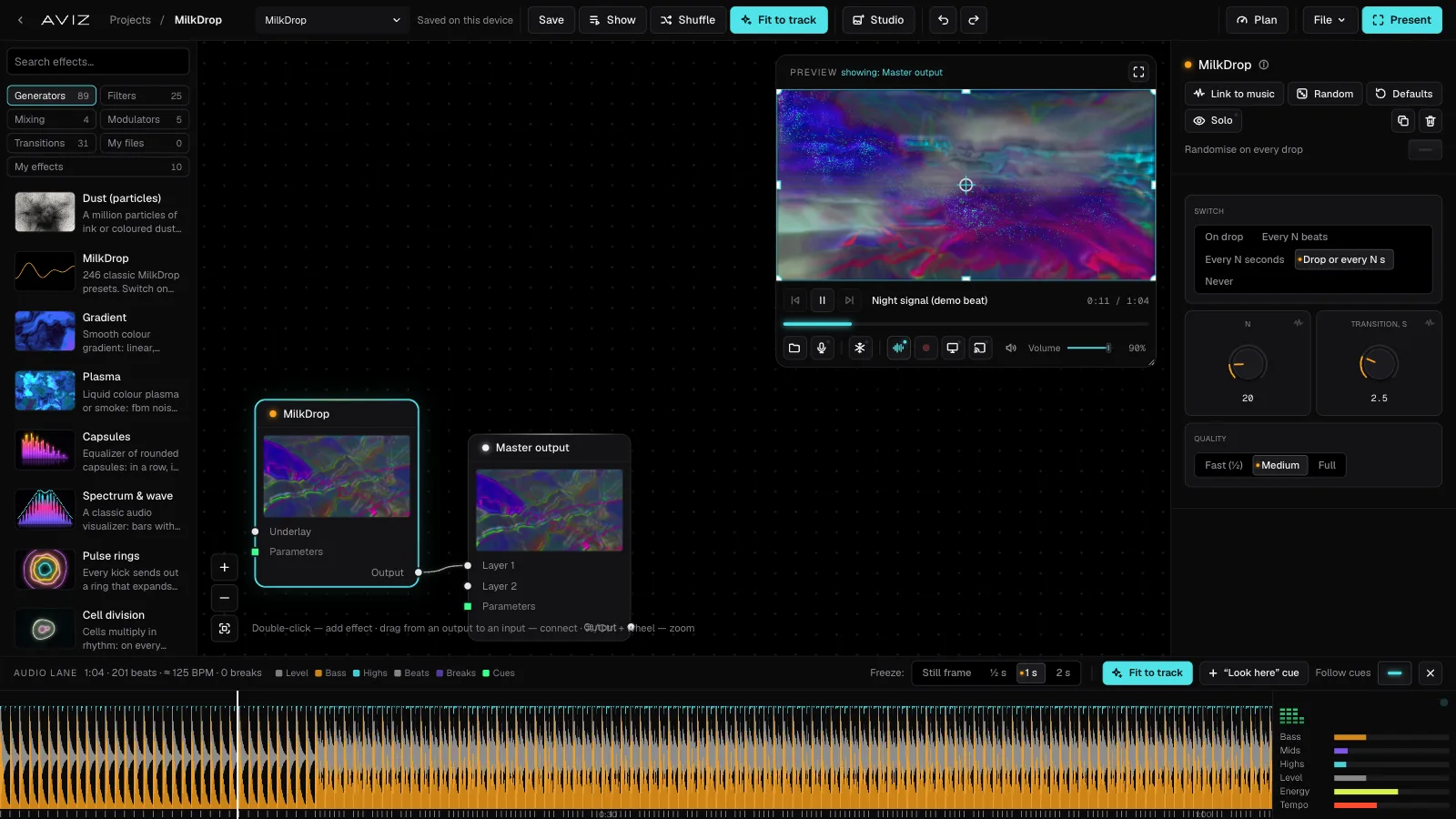
The settings
- Switch: On drop, Every N beats, Every N seconds, Drop or every N s, or Never. The default changes the preset on a drop or after 20 seconds, whichever comes first.
- N: the number of beats or seconds for the options above.
- Transition, s: how long one preset melts into the next, up to 10 seconds. Short blends feel like a cut on the beat; long ones look like the original plugin.
- Quality: Fast (½), Medium or Full. MilkDrop presets are heavy. On an older laptop or a 4K screen, Fast keeps the frame rate up, and Glow after it hides the softer edges.
To stay on one preset you like, set Switch to Never. Shuffle (or a pad on a MIDI controller) jumps to another one.
Make it more than a screensaver
- Layer it. Every generator in AVIZ has an Underlay input. Connect MilkDrop there under a spectrum ring or a line of type, and choose the blend mode.
- Filter it. Kaleidoscope, Dot portrait, Glitch or Grain & vignette after MilkDrop give the old presets a look they never had.
- Mix it with other scenes. Put MilkDrop in a Stack next to two or three other effects and let the drop decide which one is on screen.
Record a MilkDrop video
MilkDrop listens to the sound as it plays, so record it live with the Record button in the player: choose the frame (as in the preview, vertical or square), 30 or 60 fps and the quality, then play the track. The video gets the track’s sound. What you make on Free is for personal use; Pro and Studio allow commercial use, such as a release or a paid stream.
The frame-by-frame export in File → Export video and frames… suits the other effects better, because it analyses the track file itself. The guide to visualizer videos explains when to use which.
On a big screen
MilkDrop is a good background for a party or a long DJ set. Open the output window on a projector (DJ visuals guide), or on Pro and Studio stream it to TVs by link. The Mac app keeps rendering while its window is hidden and hears system audio directly, so Apple Music or DJ software can drive it with no extra routing.